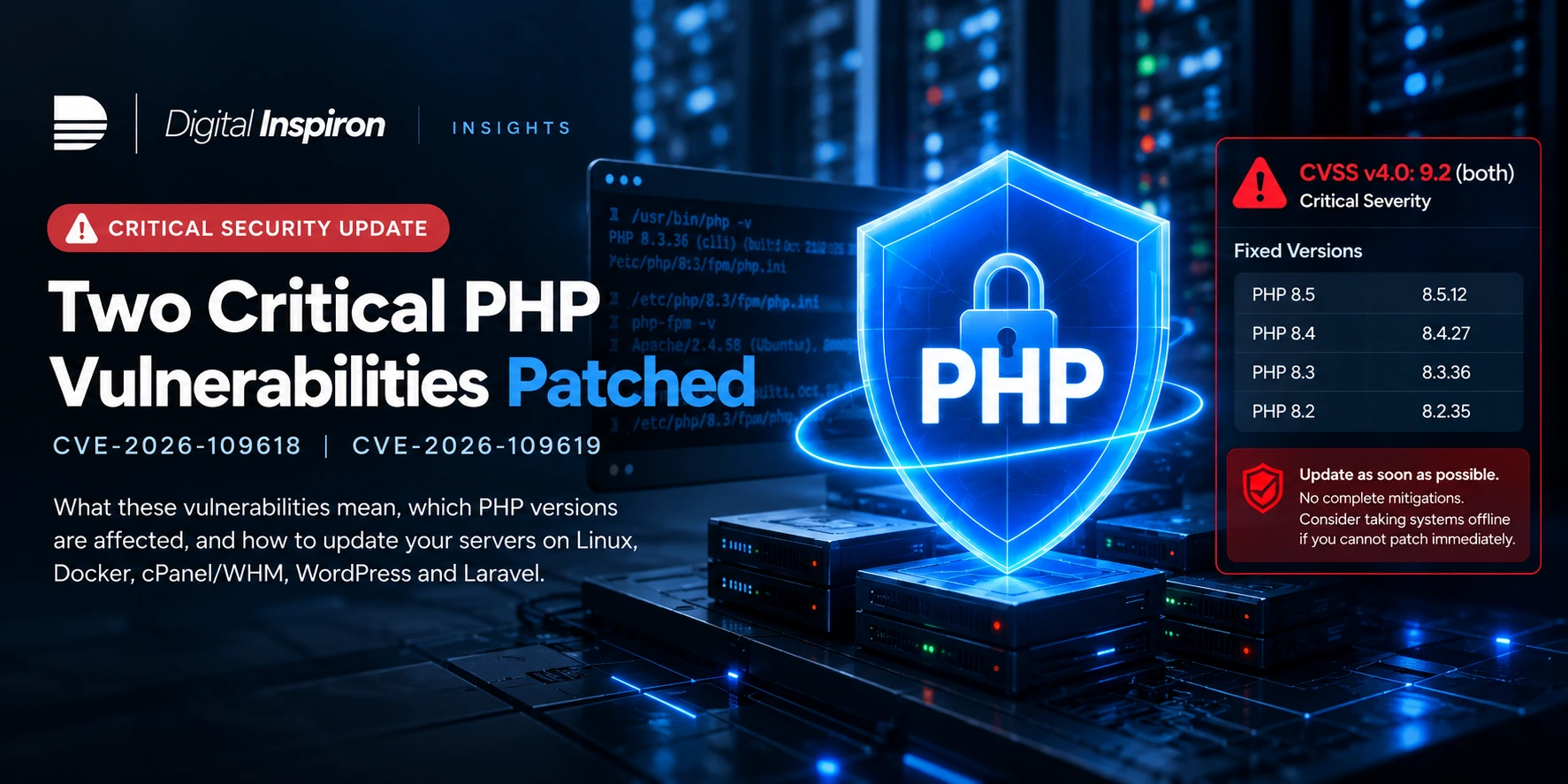
On 21 October 2026, the PHP project released security updates addressing two critical vulnerabilities, CVE-2026-109618 and CVE-2026-109619. PHP warns that these issues can allow unauthenticated remote code execution and that there are no complete mitigations. The correct response is to update the PHP runtime and verify the version actually serving web requests—not merely update application dependencies. [1]
What was fixed?
- CVE-2026-109618: An out-of-memory handling issue can leave internal request data partially initialized; cleanup can subsequently treat invalid data as valid.
- CVE-2026-109619: Request-owned internal state can remain accessible after its backing memory has been freed.
The PHP project's pre-release notice rated both issues CVSS v4.0 9.2 (Critical). Its subsequent advisory describes potentially affected PHP web-serving environments, including PHP-FPM, Apache mod_php, php-cgi, FrankenPHP and LiteSpeed, and identifies particular concern around mod_php. Exposure depends on the deployed runtime and environment; do not infer that every installation is exploitable in the same way. [1][2]
Fixed upstream PHP versions
| Branch | Fixed release |
|---|---|
| PHP 8.5 | 8.5.12 or later |
| PHP 8.4 | 8.4.27 or later |
| PHP 8.3 | 8.3.36 or later |
| PHP 8.2 | 8.2.35 or later |
These are upstream PHP release numbers. Operating-system distributions, cPanel and managed hosts may ship vendor-patched builds with different package versioning. Verify security advisories and package changelogs. PHP 8.2 reaches end of life on 31 December 2026; plan a supported-branch migration. [1]
First: identify who controls your PHP runtime
| Environment | Who normally installs the security patch? |
|---|---|
| Self-managed Linux VPS/server | Server administrator or DevOps team |
| Docker or Kubernetes deployment | Engineering/DevOps team maintaining the PHP image |
| cPanel shared hosting | Hosting provider; customer may choose among available PHP branches |
| WHM / EasyApache 4 server | Server administrator, using vendor-managed packages |
| Managed WordPress | Hosting provider |
| Self-managed WordPress server | Server administrator |
Do not rely on php -v alone: it reports the command-line PHP executable, which can differ from the runtime handling website traffic. Identify the active PHP-FPM pool, Apache module, container image or managed-host runtime before declaring the site patched.
Patch a Debian or Ubuntu PHP server
- Inventory affected websites, runtime services, PHP extensions, queues and scheduled jobs. Record the installed packages and create a tested backup or rollback plan.
- Refresh your configured, trusted repositories and inspect the candidate packages:
php -v
sudo apt update
apt-cache policy php8.3-fpm php8.3-cli
apt list --upgradable 2>/dev/null | grep -E 'php|apache'
- For a confirmed PHP 8.3 FPM deployment, and only after the repository offers a vendor-confirmed fix, update the relevant packages:
sudo apt install --only-upgrade php8.3-fpm php8.3-cli php8.3-common
- Update other installed PHP extensions and packages as required. Restart the active PHP runtime during a maintenance window:
sudo systemctl restart php8.3-fpm
sudo systemctl status php8.3-fpm --no-pager
- Check the package changelog for the CVE fix or security backport, confirm the web-serving process restarted, and perform application health tests. For Apache mod_php, patch the Apache PHP module and restart Apache according to the server's service configuration. Never assume the above service names exist on every distribution.
Patch PHP in Docker or container platforms
The image must contain the fixed runtime, and all running replicas must be redeployed. Rebuilding does not guarantee a fix when a Dockerfile pins a vulnerable base image or when the upstream image has not yet published the patch. Merely pulling a new tag does not replace existing containers.
docker compose ps
docker compose images
docker compose build --pull --no-cache
docker compose up -d
docker compose exec app php -v
Here app is a placeholder for your actual PHP service. Caution: docker compose up -d can recreate services; do not run this sequence blindly on production. Confirm the Compose project, dependencies, maintenance window and rollback plan first. Before running these commands in production, confirm your Dockerfile uses an updated upstream or vendor-patched base image; build and test in CI; inspect image provenance; and deploy an approved immutable image digest with a rollback plan. A CLI version inside the correct container is a useful check, but also confirm that it is the image serving requests and that no older replicas remain. For Kubernetes, verify rollout status and image digests across all pods.
cPanel shared hosting: what website owners can do
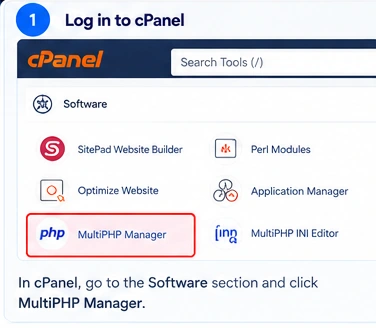 Illustrative interface walkthrough (not a live screenshot) — step 1.
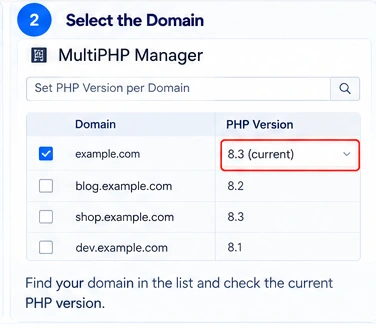 Illustrative interface walkthrough (not a live screenshot) — step 2.
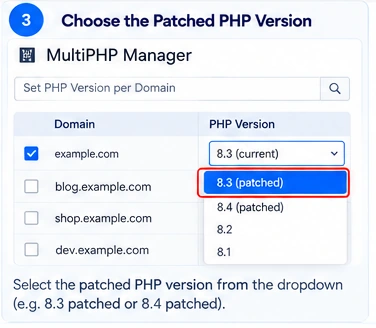 Illustrative interface walkthrough (not a live screenshot) — step 3.
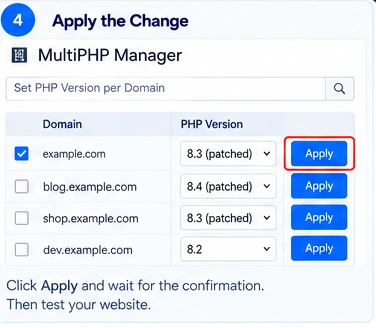 Illustrative interface walkthrough (not a live screenshot) — step 4.
- Back up your website files and database; note current PHP and extension settings.
- Open cPanel → Software → MultiPHP Manager, if your host provides it.
- Locate the domain and inspect the available PHP branches. Select a hosting-provider-confirmed patched build, not simply a newer major/minor version.
- Apply the change, then test the website and its business-critical flows.
- If the control panel shows only
8.3or8.4, request the exact installed patch/secured and vendor advisory from the host. If no fixed build is available, ask for the provider's urgent patch timeline and temporary isolation options.
Some providers use CloudLinux PHP Selector or another control panel instead of MultiPHP Manager. Follow the provider's documented path; switching versions may not install the underlying patch. Shared-hosting customers usually cannot patch server packages themselves.
WHM administrators: EasyApache 4 and MultiPHP Manager
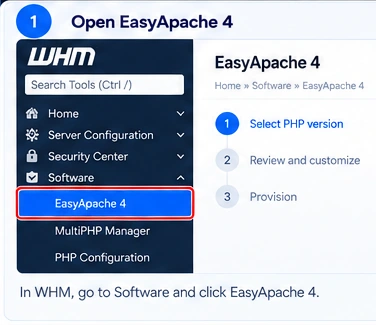 Illustrative interface walkthrough (not a live screenshot) — step 1.
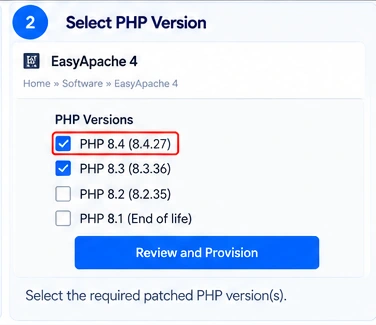 Illustrative interface walkthrough (not a live screenshot) — step 2.
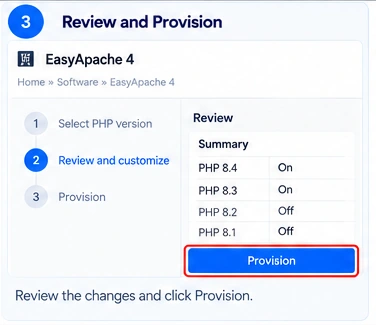 Illustrative interface walkthrough (not a live screenshot) — step 3.
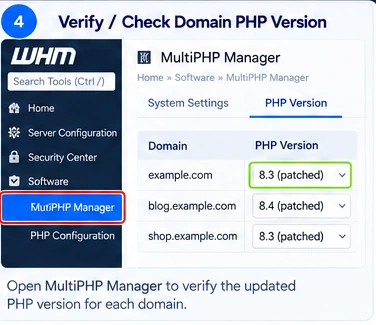 Illustrative interface walkthrough (not a live screenshot) — step 4.
- Take backups and identify every hosted domain's PHP handler and branch.
- In WHM → Software → EasyApache 4, review available package updates and the installed
ea-phppackages. - Confirm the cPanel/vendor security update actually addresses the relevant CVEs, then apply the patched packages through supported package-management procedures.
- Use WHM → Software → MultiPHP Manager to verify which branch each domain uses. Check CloudLinux or other alternate PHP providers separately.
- Restart or recycle the affected web-serving workers using the supported maintenance procedure.
- Verify installed package versions, vendor backport evidence, web-serving processes, domain health and application functionality.
Do not claim success merely because EasyApache 4 reports “up to date.” The repository must actually contain the security fix. cPanel interface labels and available PHP versions can vary by provider and release. [3]
WordPress: updating PHP is different from updating WordPress
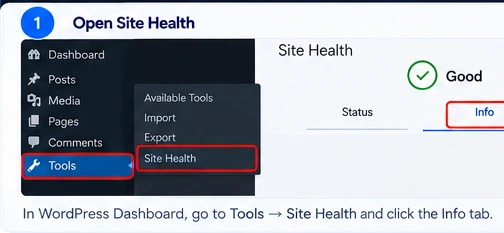 Illustrative interface walkthrough (not a live screenshot) — step 1.
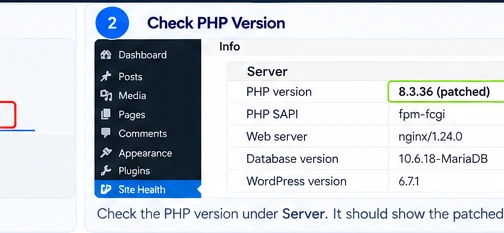 Illustrative interface walkthrough (not a live screenshot) — step 2.
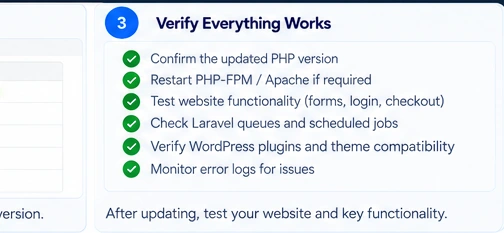 Illustrative interface walkthrough (not a live screenshot) — step 3.
WordPress core, plugins and themes are application software. Updating them does not patch these PHP runtime vulnerabilities.
- In WordPress, open Tools → Site Health → Info → Server and record the reported PHP version.
- Back up the WordPress files and database, and prepare a staging test where feasible.
- Update supported WordPress core, themes and plugins; check their compatibility with the target patched PHP build.
- Use your hosting dashboard or ask the managed WordPress provider to deploy the fixed PHP runtime. WordPress itself does not normally provide a PHP runtime upgrade button.
- Verify the runtime again and test administrator login, forms, scheduled jobs, email, caching and critical plugins.
- For WooCommerce, also test cart, checkout, payment callbacks and order creation; for membership/booking sites, test authentication, renewals and appointment flows.
Site Health may display only a version string, not a vendor's backport status. Ask your provider to confirm patch provenance when necessary. If a plugin breaks after upgrading PHP, fix the compatibility issue or use a supported alternative; reverting indefinitely to an unpatched runtime is not a safe resolution. [4]
Laravel and other PHP applications
A composer update, framework upgrade or Laravel security fix is not a substitute for updating PHP itself. After the runtime patch, validate configuration loading, database access, authentication, queue workers, scheduler, storage, third-party integrations and representative transactions. Restart long-running queue workers as part of the deployment plan where appropriate. Do not expose public phpinfo() pages to prove patch status.
What if your hosting provider has not released the patch?
Escalate to the provider with the two CVEs and request its vendor advisory, patch availability and deployment timeline. Reduce exposure while preparing remediation—for example, restrict access to affected services or take particularly sensitive applications offline if necessary. These are risk-reduction measures, not complete mitigations. Do not promise that a WAF rule or plugin prevents exploitation. [1]
How to verify that remediation is complete
- Identify every PHP web-serving instance, domain, FPM pool, Apache module, container and worker.
- Match each deployed runtime to a fixed upstream version or a documented vendor security backport.
- Confirm web-serving processes and containers were restarted or redeployed.
- Validate key business transactions and review error logs.
- Verify there are no stale replicas or overlooked staging/public environments.
- Record the package/image identifier, evidence of the fix, deployment time, owner and test result.
- If compromise is suspected, follow incident-response procedures; patching does not by itself establish that an earlier intrusion did not occur.
Questions to send your hosting provider
- What exact PHP build is serving my domain?
- Does it contain fixes for CVE-2026-109618 and CVE-2026-109619, or an equivalent documented vendor backport?
- Have all PHP web workers and hosting nodes been restarted on the patched build?
- What compatibility risks apply to my WordPress, WooCommerce or custom application?
- What evidence can you provide that the update is deployed and verified?
The business takeaway
The objective is not simply to click “update.” It is to prove that the runtime handling customer requests has been patched and that the website still works. For businesses relying on online enquiries, checkout, booking or customer portals, that verification is part of protecting operational continuity.
Next step: Use the deployment checklist above to establish patch status. If you need an independent discussion of your rollout and verification requirements, see the contact section below.
References
[1] PHP project, 21 October 2026 security advisory: https://www.php.net/archive/2026.php#2026-10-21-5
[2] PHP project, 20 October 2026 advance notice (CVSS 9.2): https://www.php.net/archive/2026.php
[3] cPanel documentation: https://docs.cpanel.net/cpanel/software/multiphp-manager-for-cpanel/ and https://docs.cpanel.net/whm/software/easyapache-4-interface/
[4] WordPress documentation, Update PHP: https://wordpress.org/documentation/article/update-php/
Editorial disclosure: Commands are examples, not a universal production runbook. Package names, PHP handlers, control-panel menus and vendor backport versions vary. Confirm vendor instructions and test changes before production rollout.